Following the transition of the Lede platform from a custom-built login system to AuthJS, Google SSO will be available to end-users. Google SSO is optional – users will be able to login with password or link sent to their email address. To enable Google SSO for your users, follow the instructions below:
Login to Google as your preferred account owner (we recommend an account associated with your domain, rather than a personal email)
If prompted to, create a new project named anything you like (such as the name of your website), then create to the Create Client page.
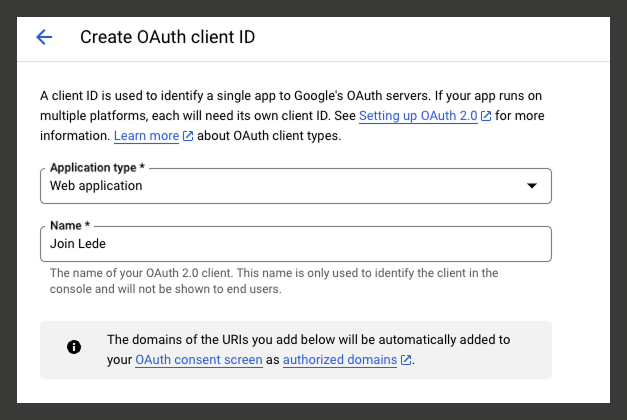
Under “Application Type” select “Web application”
Select any name for the credential you’d like (this won’t be displayed publicly)
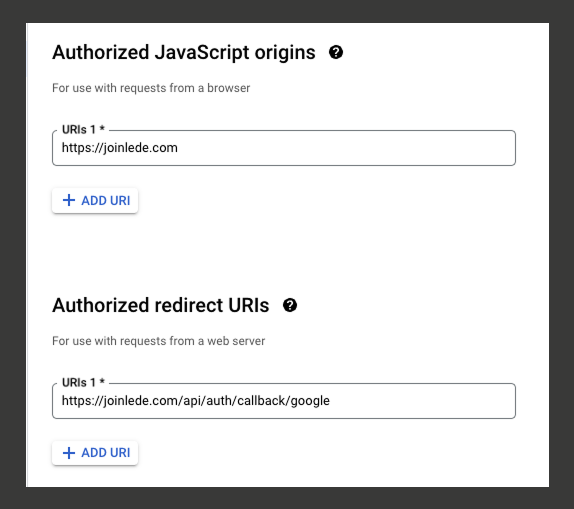
Under “Authorized JavaScript origins” add your site’s homepage address (e.g. “https://joinlede.com”)
Under “Authorized redirect URIs” add your site’s homepage address plus /api/auth/callback/google at the end (e.g. https://joinlede.com/api/auth/callback/google)
Click “Create”
Copy the Client ID and Client Secret values
- In the Publisher App, go to Settings > Login & Profile Options
Enter your credentials
Click Save Settings