The Page Layout Options panel gives you powerful tools to create visually striking pages by controlling spacing and title display. This feature, exclusive to pages (not available on posts), lets you craft seamless layouts perfect for homepages and featured pages (such as annual reports).
Finding the Page Layout Options
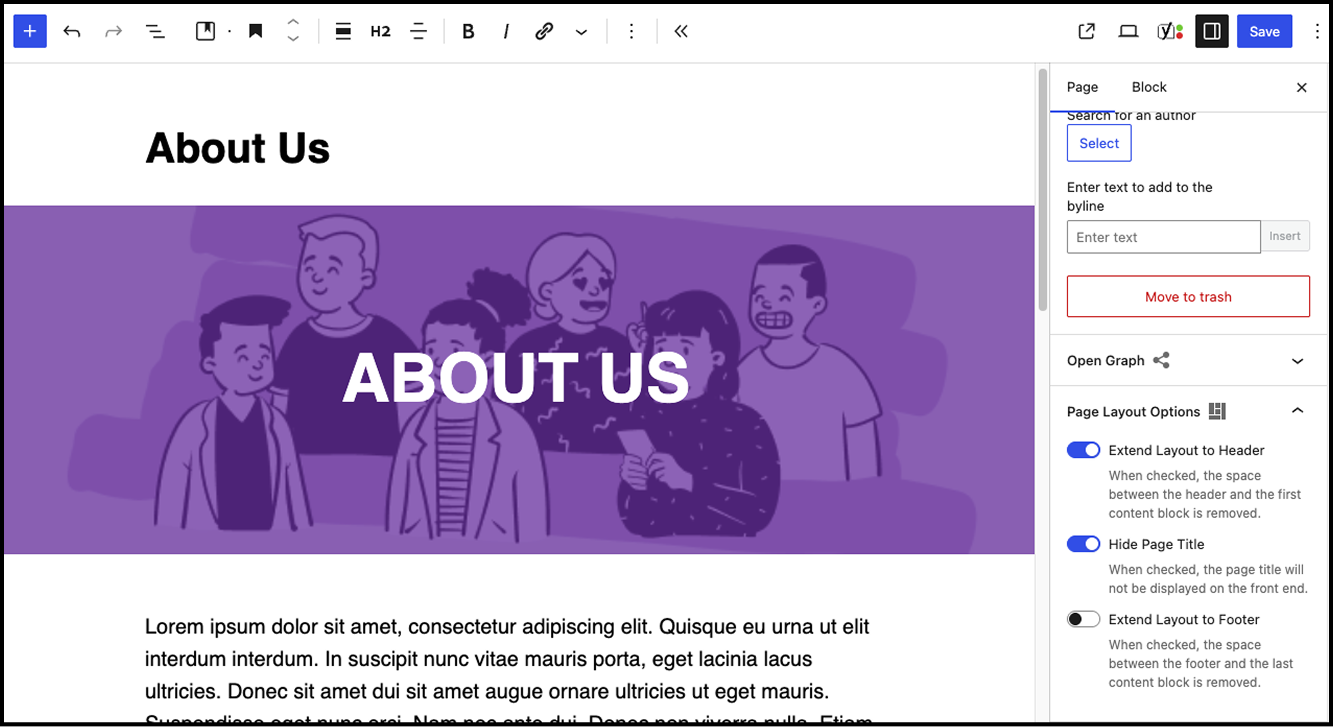
Navigate to your page editor and locate the Page sidebar. Within the sidebar, you’ll find the Page Layout Options panel containing three simple toggle switches that control your page’s visual presentation.
Understanding the Three Layout Controls
1. Extend Layout to Header
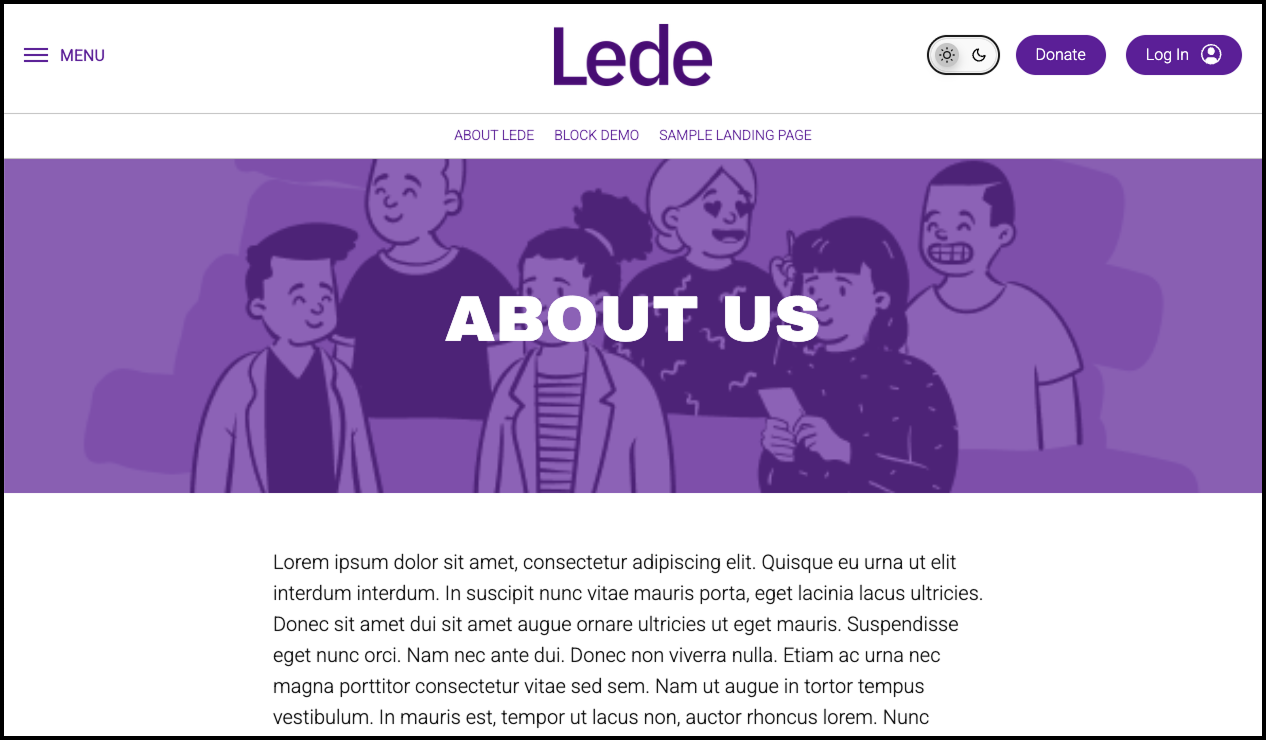
This option removes the default spacing between your site header and the first content block on the page. When enabled, your content flows seamlessly from the navigation area, creating a cohesive, professional appearance.
2. Hide Title
Toggle this switch to prevent the page title from appearing on the front end of your site. This gives you complete control over your page hierarchy and visual flow, allowing hero images or custom headers to take center stage.
3. Extend Layout to Footer
Similar to the header option, this setting eliminates the gap between your last content block and the site footer, creating a smooth transition to your footer content.
Important Considerations
Before implementing these layout options, keep these key points in mind:
Advertising and Sponsorships
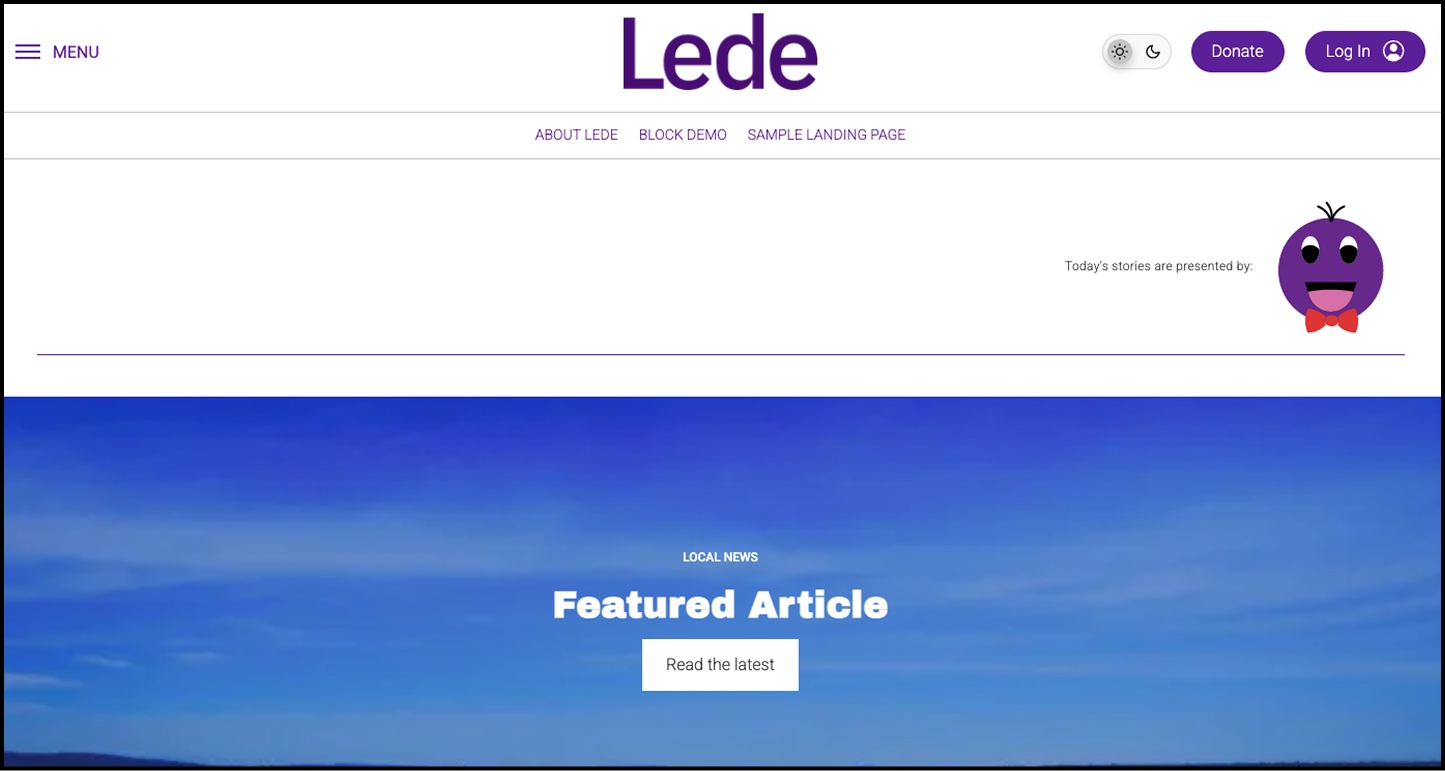
Leaderboard ads and banner sponsorships take precedence over the “Extend layout to header” setting. If you have advertising enabled at the top of your page, the system will maintain appropriate spacing between the ad unit and your first content block, regardless of your layout settings.
Homepage Behavior
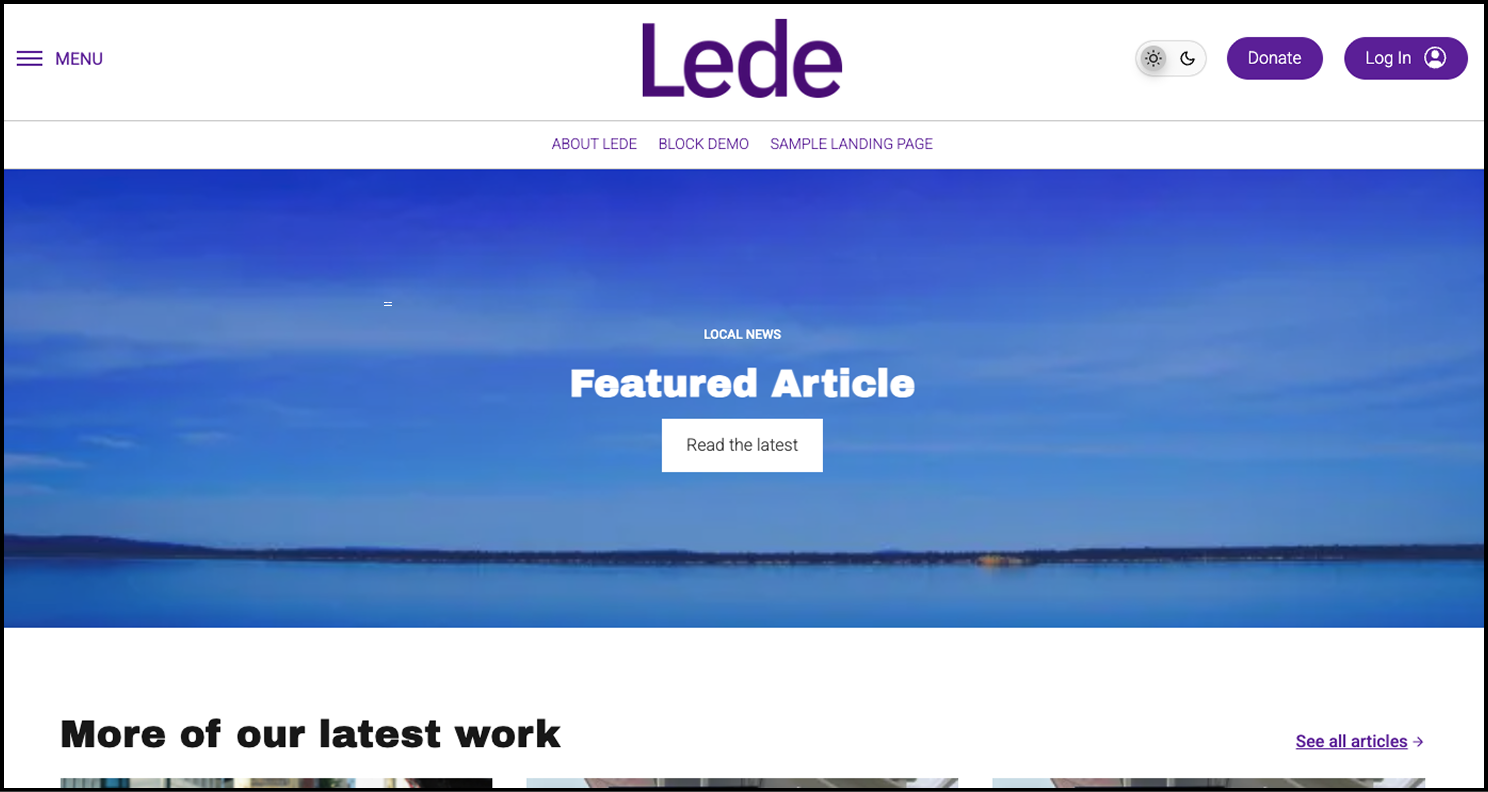
The homepage and pages using the homepage layout template automatically hide titles by default. You don’t need to enable the “Hide title” option for these pages—it’s already taken care of for you.
Design Tips for Maximum Impact
Leverage Full-Width Blocks
Full-width content blocks create the most dramatic effect when combined with extended header and footer layouts. These blocks stretch edge-to-edge across the screen, eliminating visual boundaries and creating an immersive experience.
Recommended Block Types
- Cover blocks: Perfect for hero sections with text overlays
- Image blocks: Ideal for showcasing high-impact photography or graphics
Preview Before Publishing
The editor view doesn’t fully represent how your extended layouts will appear on the live site. Always use the preview function to see exactly how your design choices will look to visitors. This ensures you’re confident in your layout decisions before making them public.
Getting Started
Ready to transform your pages? Open any page in your editor, locate the Page Layout Options panel in the sidebar, and experiment with different combinations. Remember to preview your changes and consider how each option enhances your content’s presentation.
With these simple yet powerful controls, you’re equipped to create pages that not only inform but also inspire your visitors through thoughtful, professional design.