Affiliate Block
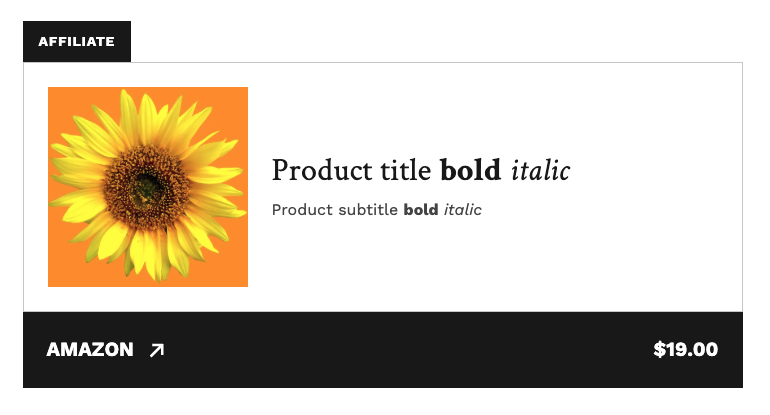
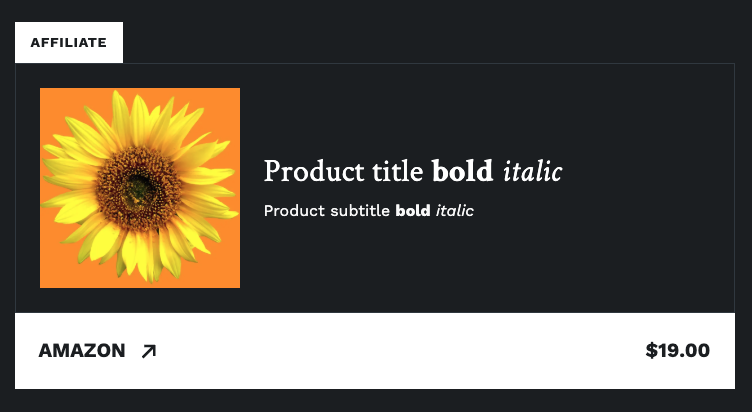
The Affiliate Block is a product card you can drop into a post to feature a single product with a buy link. It’s designed for reviews, gift guides, “best of” lists, and any article that recommends something readers might want to purchase.
Adding the block
- In the editor, click the + button to add a new block.
- Search for Affiliate and select it.
- Click the image area to upload or choose a product photo.
- Replace the placeholder title, subtitle, and price.
- In the block settings panel on the right, paste the affiliate URL into Retailer URL.
The block ships with sensible defaults — the button reads “Buy on Amazon” until you change it — so you’ll have a working preview from the moment you insert it.
Field reference
| Field | What it does |
|---|---|
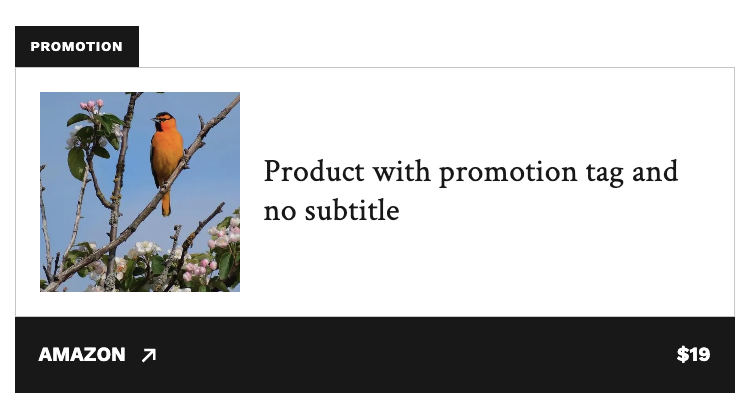
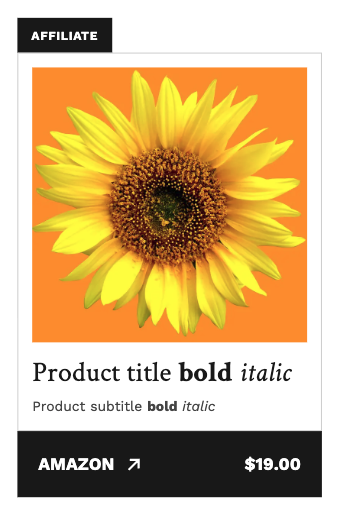
| Label | The dark tab at the top of the card. Defaults to “AFFILIATE.” Rename it (for example, to “SPONSORED” or “PROMOTION”) or hide it in the block settings panel. |
| Product image | The square image on the left of the card. Uses the standard WordPress image controls — alt text, focal point, and replace. |
| Product title | The main bold line. Usually the product name. |
| Subtitle | Optional second line. Use it for the artist, author, format, or any short qualifier. |
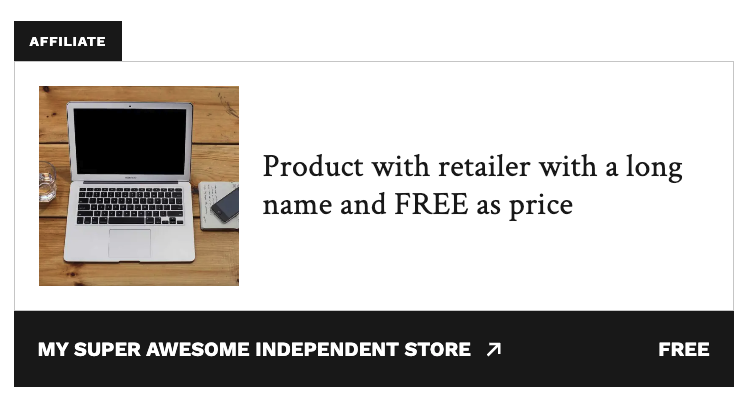
| Price | Free-form text. Use whatever format fits — $28.99, From $20, £15, Free with subscription. |
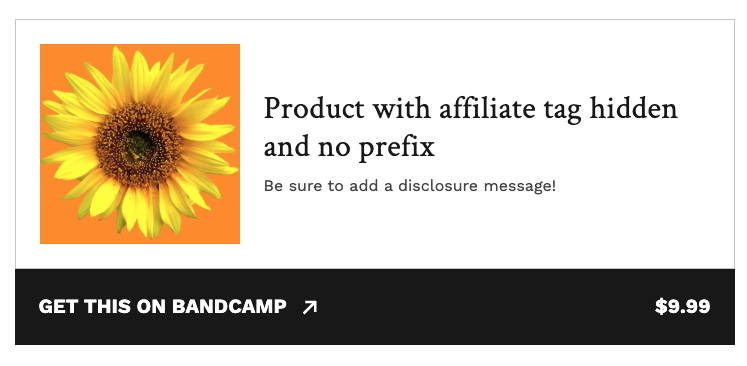
| CTA prefix | The lead-in text on the button. Defaults to “Buy on.” Clear it if you’d rather the button read just the retailer name. |
| Retailer name | Appears after the CTA prefix on the button. Defaults to “Amazon.” |
| Retailer URL | The affiliate link readers will be sent to. |
Working with the block
Pick a square or center-weighted image. The card uses a square crop. Album covers, book jackets, and centered product photography look great. For other shots, use the focal point control on the image to set what the crop should center on.
Write descriptive alt text. The standard WordPress alt text field on the image carries over — it helps with accessibility and image search.
Keep titles tight. Short, recognizable product names look best. If a product’s official name runs long (something like “The Land Is Inhospitable and So Are We”), it’s fine to trim it.
Use the subtitle for distinguishing details. “Vinyl LP,” “Hardcover,” “2024 edition,” “Refurbished” — anything that tells readers exactly what’s being linked.
Match the label to your editorial standards. “AFFILIATE” is the default and works for most uses. If you’d prefer “SPONSORED,” “PROMOTION,” or something custom, you can change the label text per block. Hide it entirely on posts that already carry a clear disclosure elsewhere.
Clear the CTA prefix for a cleaner button. Removing the “Buy on” prefix gives you a tighter button that just reads the retailer name and price — useful when you want the card to feel less promotional, or when the retailer name speaks for itself (“APPLE — $189”).
A note on disclosure
The “AFFILIATE” label on the card is a clear, visible signal to readers that the link is sponsored — which is exactly what disclosure guidelines (including the FTC’s in the US) ask for. Leaving the label on is the simplest way to handle disclosure for a single product mention.
For posts with several affiliate links, or for sites with a standing disclosure policy, you may prefer a written disclosure at the top or bottom of the article instead. In that case, you can hide the label on individual blocks. The disclosure itself remains your responsibility — the block supports your practice rather than replacing it.
Common questions
Can I link to more than one retailer in a single block? Each block points to one retailer. To give readers a choice — say, Amazon and Bookshop — stack two Affiliate Blocks together.
Do prices update automatically? Prices are entered by hand and stay as written. For posts that will live a long time, you can use phrasing like “From $20” or “$28.99 at time of publication.”
How do I add click tracking or UTM parameters? Add them to the affiliate URL before pasting it in. Whatever you put in the Retailer URL field is exactly what readers will be sent to.
Can I add a star rating or pros/cons to the block? The block is intentionally a clean buy card — no ratings or review content inside. Put that content in the surrounding paragraphs, or pair the block with a dedicated review component.
What if the product image gets cropped in a way I don’t like? Open the image and adjust the focal point to set what the square crop should center on. If the photo really isn’t suited to a square crop, swap it for one that is.
Can I change “AFFILIATE” to something else, or remove it? Yes to both. Edit the label text in the block settings panel to rename it, or toggle it off to hide it.
Examples
Dark Mode
Mobile
Other examples