Recirculation Block
The Recirculation block surfaces up to five related or recommended posts at the point where readers finish an article, giving them an easy next click and keeping them on your site. It lives in the Lede block category and replaces the styling of the older related-post block, so your existing related-post modules pick up the new card design automatically on deploy. No content migration is required, and editors don’t need to touch anything for the restyle to take effect.
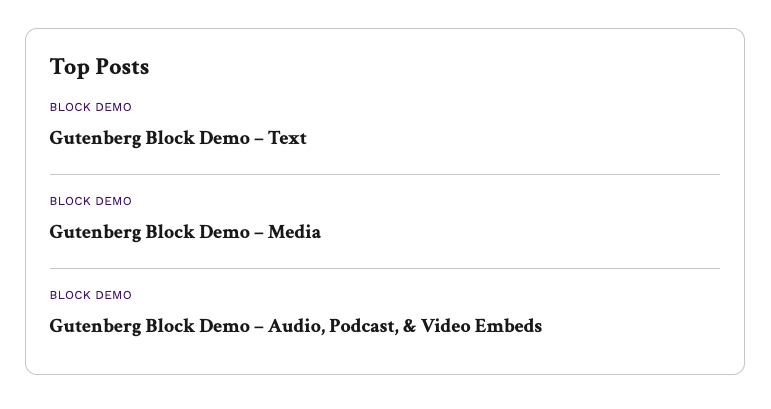
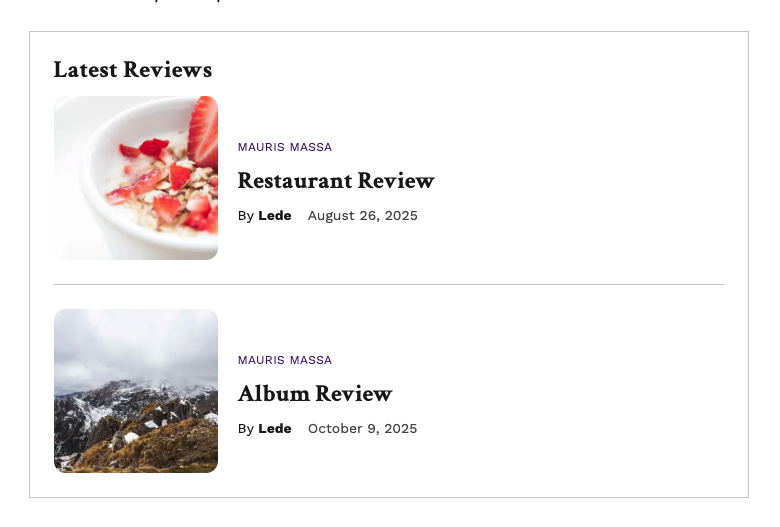
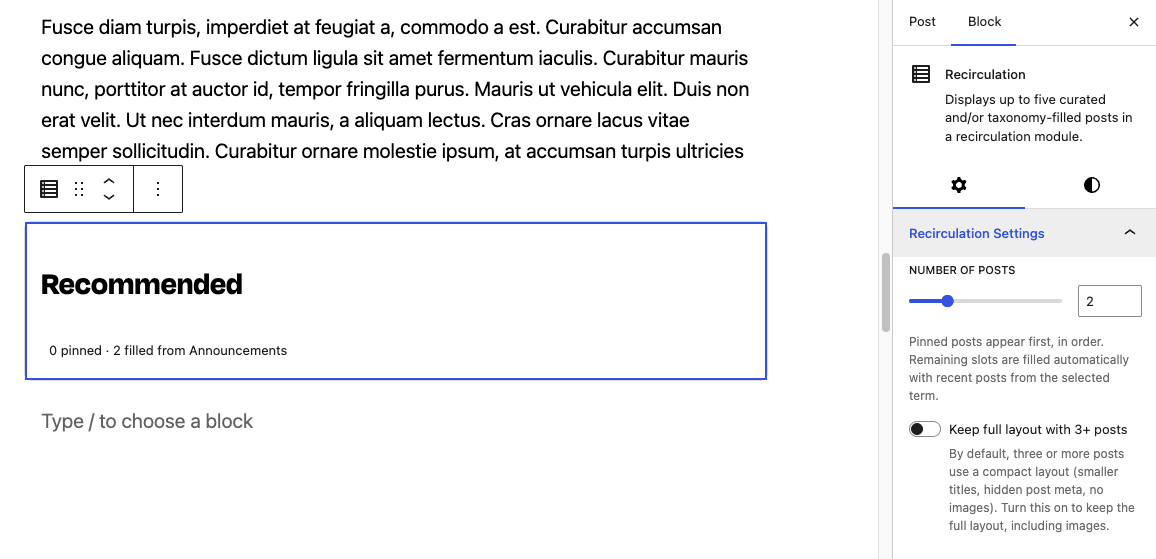
At the top of every block sits a Recommended heading. This is a standard heading block, so you can rename it and adjust its font size, font family, color, and alignment using the normal heading controls.
Choosing which posts appear
Start by setting the number of posts you want to show, anywhere from one to five (the default is two). You then have two ways to fill those slots, and they work together:
- Pinned posts let you hand-pick specific articles. Pinned posts always appear first, in the order you arrange them using the move up and down controls.
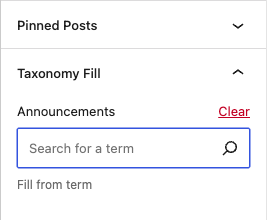
- Taxonomy fill lets you choose a term (a category, tag, or custom taxonomy) so the remaining slots fill automatically with the most recent posts from that term.
If you pin some posts but don’t choose a fill term, or pin nothing at all, the empty slots fall back to the current article’s primary category automatically. This makes the block a reliable “set and forget” option for templated placements.
The block keeps itself clean as it fills:
- Auto-fill never repeats a pinned post, the article the reader is currently on, or a post already used by another block on the same page.
- Only published posts appear. Pinned drafts and scheduled posts are skipped.
- If there’s genuinely nothing to show (no pins, no fill term, and no primary category), the block renders nothing on the front end. In that state, the editor displays a warning so you know to address it.
Layout and display
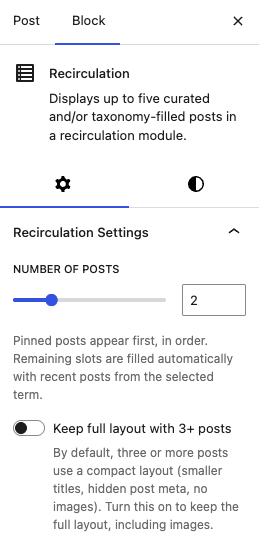
The layout adapts to how many posts you’re showing:
- One to two posts use the full layout, with featured images.
- Three or more posts switch to a compact layout with smaller titles, no images, and hidden post meta.
If you’d rather keep images and the larger format even with three or more posts, turn on Keep full layout with 3+ posts.
Each card can display a featured image, an eyebrow (the primary category), the title, a byline, a timestamp, and a comment count. When a post has no featured image, the block falls back to the site’s default featured image. You can hide individual elements from the display panel using the Hide image, Hide eyebrow, Hide byline, Hide timestamp, and Hide comment count toggles.
Hide image acts as a master override and removes images in any layout. Since images only ever appear in the full layout, this toggle mainly matters for the one-to-two-post case or when you’ve turned on “Keep full layout with 3+ posts.”
Styling
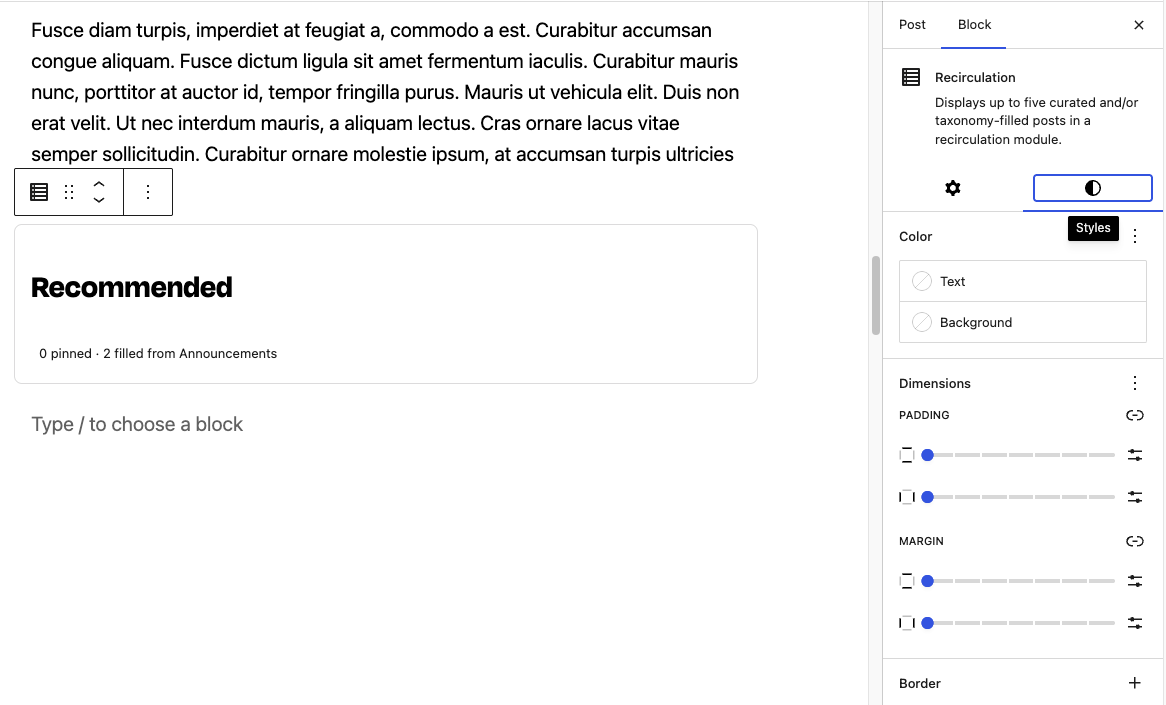
Everything below is publisher-overridable and ships with sensible theme-token defaults:
- Background and text color
- Spacing (padding and margin)
- Border (color, width, radius, and style)
The border control does double duty: it also styles the divider lines between posts. To remove those dividers, set the border width to 0 or the style to “none.” Item spacing tightens automatically when there are no images, so an image-free module reads as a clean, compact list.
In dark mode, background and text colors adapt on their own. Neutral preset backgrounds flatten to the dark surface and preset text drops to the base font color, but a custom hex text color you’ve deliberately chosen is left untouched.
Common use cases
- End-of-article module — a classic “Recommended” or “Related stories” section.
- Editor-curated must-reads — pin specific posts in a deliberate order.
- Auto-updating topic feed — set a category, tag, or custom-taxonomy fill and it stays fresh on its own.
- Hybrid — pin one or two hero stories and let the rest auto-fill from a topic.
- Compact text-only list — use three or more posts, or turn on Hide image, for dense placements and shorter modules.
Pro tips
- Pin for control, fill for freshness. Combine the two: pinned posts lead, and auto-fill completes the set.
- Leave the fill term empty to have the module track each article’s primary category automatically. This is the best default for templated placements.
- You can’t pin more posts than your post count. Raise the count first; a warning appears when every slot is pinned.
- For a tight, text-only list, use three or more posts (which auto-compacts) or turn on Hide image. Spacing adjusts on its own.
- To remove divider lines, set the block’s border width to 0 or its style to none.
- Set a block-level text or background color and it propagates to every card and adapts correctly in dark mode.
- Style the heading like any heading block. Size it with the font-size presets (Extra Small through XXL Heading) and choose its font family right there.