About
The Flex List Item block creates visually distinctive list items with prominent numbering or markers. Perfect for rankings, collections, or featured content. Supports counting up, counting down, or unordered arrangements with full rich text, images, and links for each item.
What’s Inside this Block
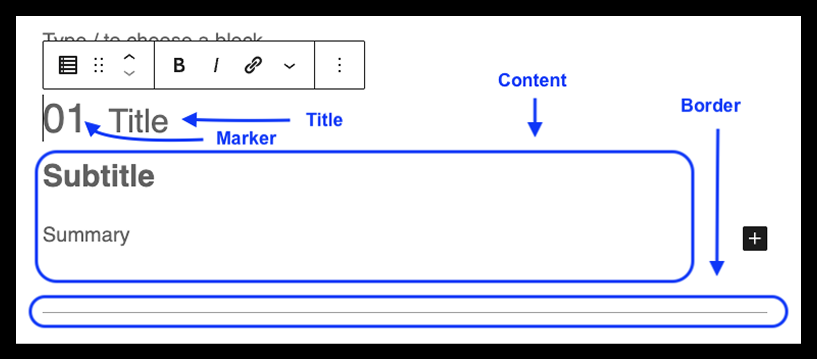
The block includes a marker, a title, a content section, and a bottom border.
The marker can be a number (1, 2, 3), Roman numerals (I, II, III), or even an emoji ( 1️⃣, ?, ?).
The marker, title, and bottom border are optional.
The content section can include headings and paragraphs as well as various media and embeds.
Block Availability
This block is available on Posts and Pages.
Initial Block Setup
The block contains placeholder content for the marker (01), title (Title), and content section (Subtitle and Summary).
The initial block toolbar options will show the options for the marker. As you navigate through the areas of the block the toolbar options will change.
The content section displays a heading and a paragraph, but you can include rich content, including media and embeds. Click into the content section and then delete the placeholders. Add your content using block inserter (+ plus sign).
Customizing the Block
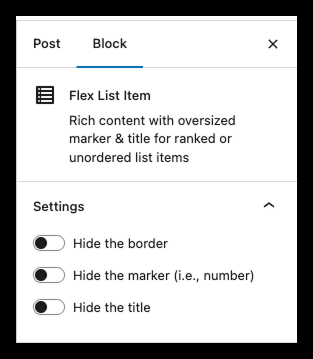
The block can be customized through the block sidebar. Block settings affect the selected block only. They do not apply to all instances of the block.
Block Settings
| Setting | Description | Default Value |
|---|---|---|
| Hide the border | Remove the bottom border | False |
| Hide the marker | Toggle off the marker if you want only the title to display | False |
| Hide the title | Hide the title field if you want a minimalist look with just the marker | False |
Pro Tips & Best Practices
- Be consistent with markers – Choose a numbering system (standard numbers, leading zeros, Roman numerals) and stick with it throughout your list
- Consider formatting details – If you add punctuation after numbers (such as “1.”), maintain consistency across all items
- Hide the bottom border when appropriate – For the final Flex List Item block in your post, consider hiding the bottom border for a more polished look
- Mix media types – Take advantage of the block’s support for rich content by including images or embedded content, such as videos, social media posts, or playlists
Common Questions
Can I customize the size of the heading?
Yes, you can adjust the size of the heading as well as its color. Use the block size bar to adjust the size.
Can I insert other content between Flex List Item blocks?
Yes. Each Flex List Item block is independent, so you can insert ads, newsletter CTAs, and recommended post blocks between Flex List Item blocks.
Examples
Mobile – Light Mode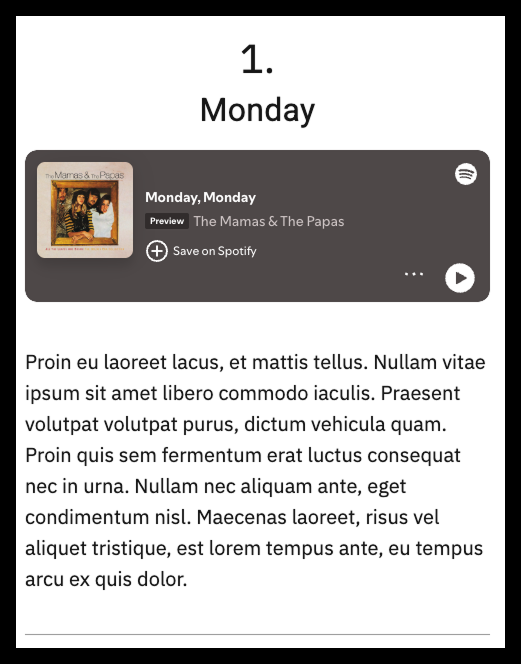
Desktop – Light Mode
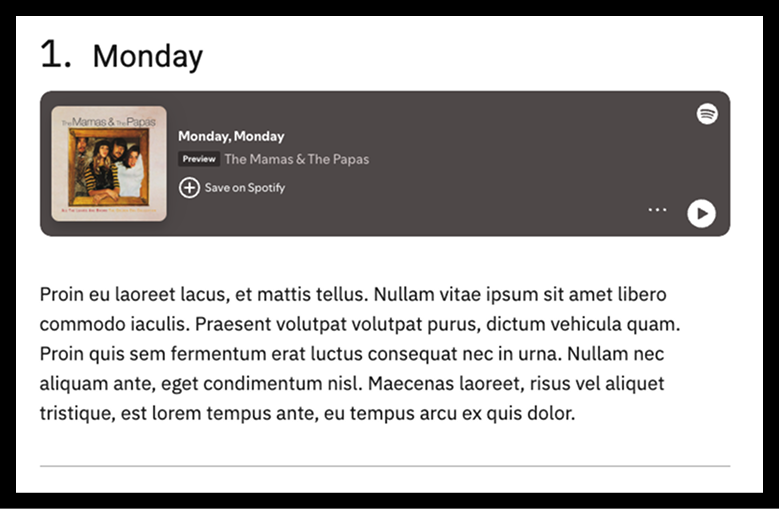
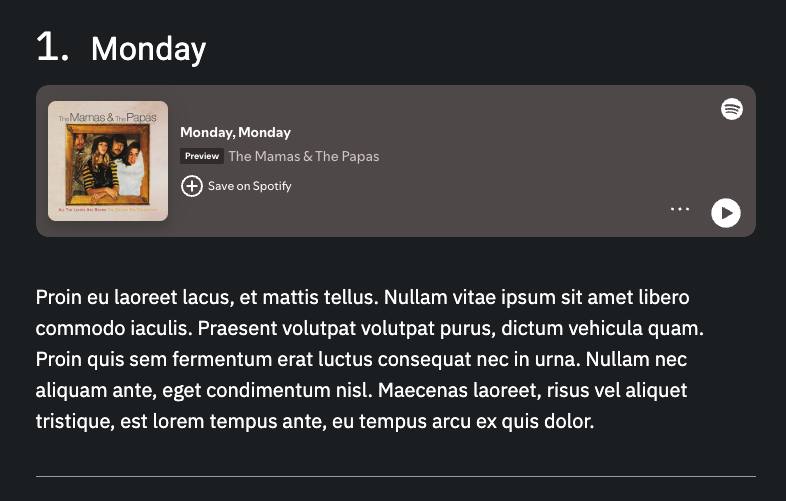
Desktop – Dark Mode