Lede uses a few different image aspect ratios throughout the site for different purposes. The aspect ratio of an image is the ratio of its width to its height, and is expressed with two numbers separated by a colon. So, for example, an image with a 16:9 aspect ratio that is 160 pixels in width would be 90px in height. We use these aspect ratios throughout Lede to ensure images load performantly—they don’t load more pixels than are necessary for the location in which they appear—and to ensure a pleasing and consistent layout on pages like the homepage.
In order to achieve a specific aspect ratio, however, images may be cropped in unexpected ways by our system resulting in people or text getting cut off in the image. In order to prevent this and give you full control over what appears in your images, we’ve built a tool for customizing (or art direct) the crop location of an image for each of the aspect ratios we use. This document will describe the aspect ratios we use on Lede and how to use the cropping tool, called the Thumbnail Editor.
Using the Thumbnail Editor
The thumbnail editor can be accessed from within the Media Library both on its standalone page and within the modal that opens when adding an image to a post within the post editor. To access it, select an image from the Media Library and scroll to the bottom of the right hand sidebar that appears. There is a “Show Thumbnails” button, as shown in the red square in the below screenshot:
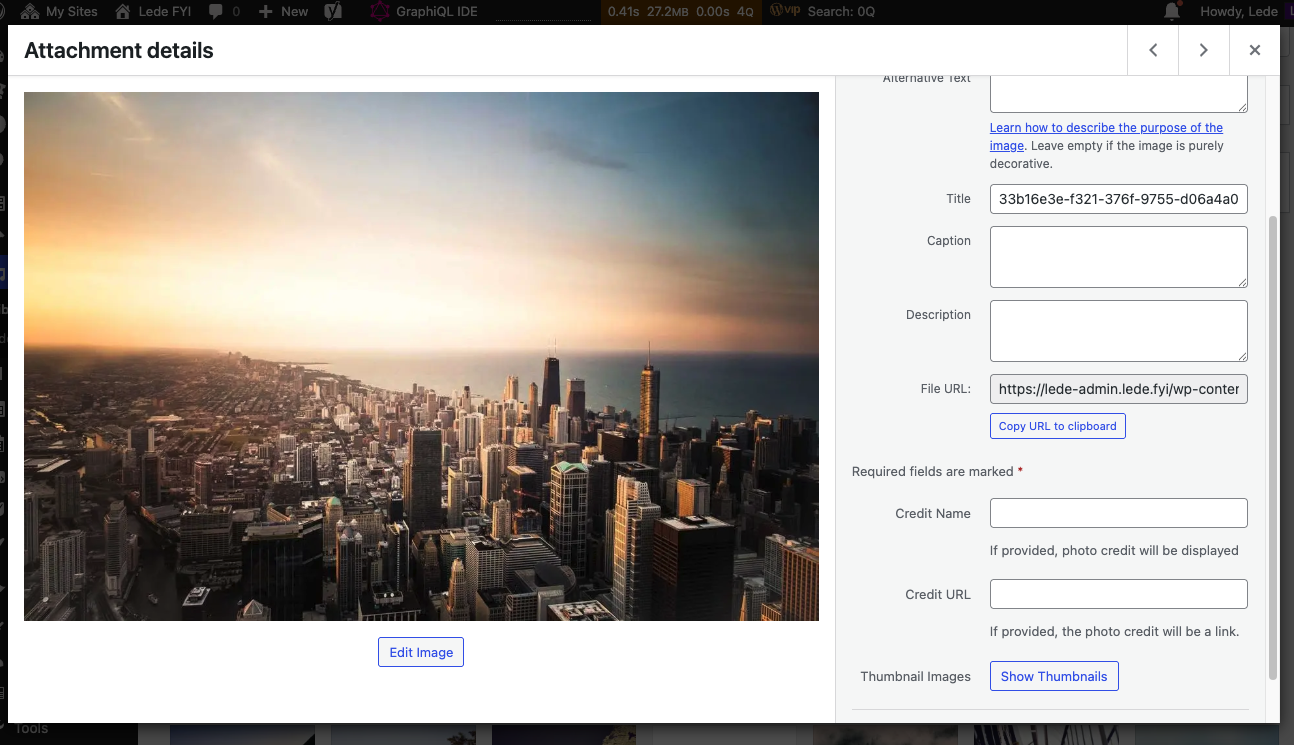
After clicking this button, you should be presented with three options—one for each aspect ratio:
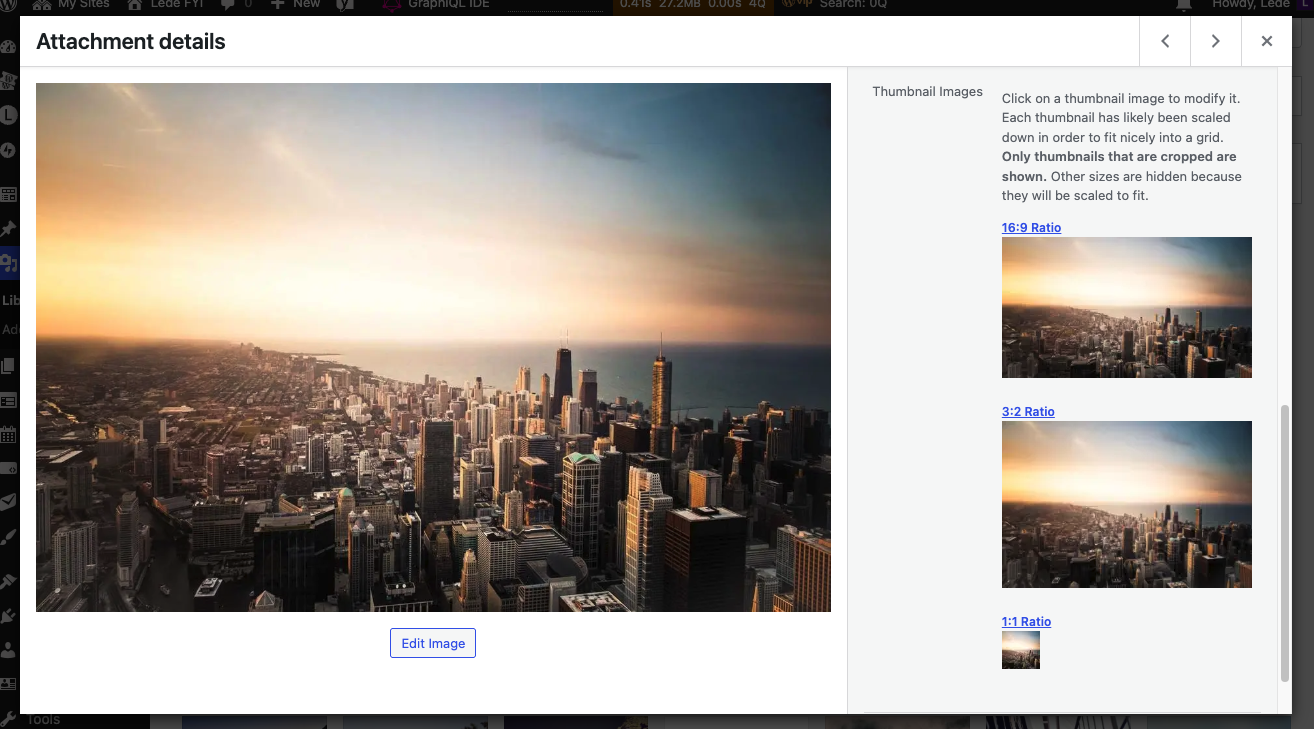
Select the aspect ratio for which you’d like to create a custom crop. Once you do so, it will send you to the editor. The editor will present you with a box that is locked to the selected aspect ratio. You can move and resize this box to display the portion of the image that you’d like users to see whenever that image appears at that aspect ratio.
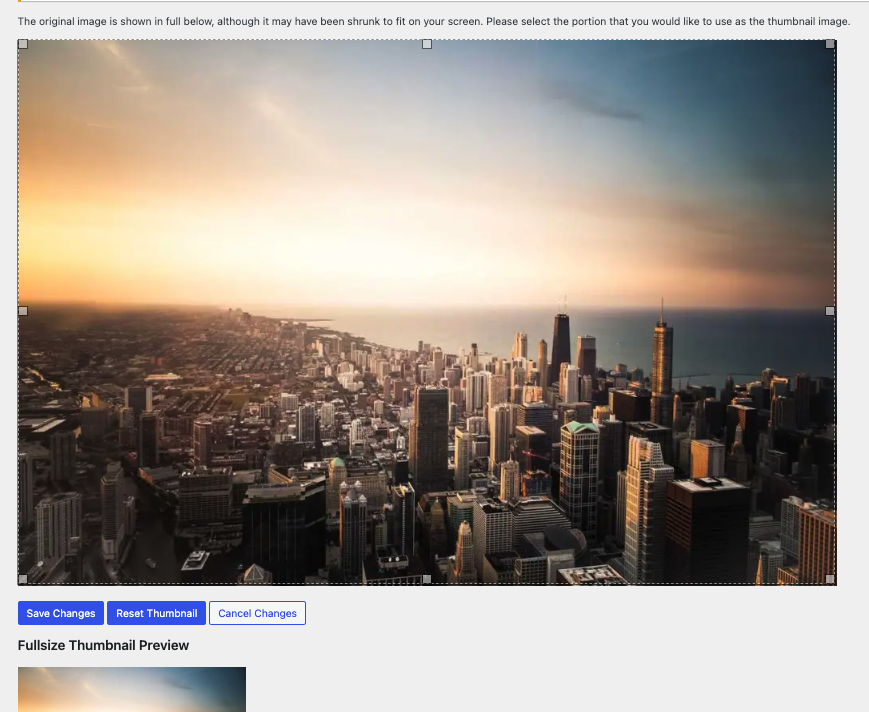
Then click “Save Changes.” The updated crop will populate across the site.