There are a variety of types of embed blocks which exist for a few different purposes. For performance considerations, ensure you are using the appropriate type of embed block for the type of content you wish to include on your site.
Basic Embed Blocks
Audio Block
Allows you to embed .mp3 and other audio files into a post using a native HTML5 audio player.
- USE FOR: Audio-only files.
- HOW TO: Add a single file from the media library or upload a file.
- Supported file types include: .mp3, .ogg, .wma, .m4a, and .wav
- You can change the autoplay and loop settings for the block in the Block Options in the right sidebar.
- We do not recommend setting media files to autoplay.
- Supported file types include: .mp3, .ogg, .wma, .m4a, and .wav
- You can change the autoplay and loop settings for the block in the Block Options in the right sidebar.
- We do not recommend setting media files to autoplay.
- ACCESSIBILITY: Audio-only content can be inaccessible to deaf users and those who have trouble with hearing. To make your audio content accessible, add a transcript or audio description.
Embed Block (and aliases)
Allows you to add video, images, and other forms of content from a list of approved third-party sites including Bluesky, TikTok, and YouTube.
- USE FOR: Embedding content from any of the approved third-party services that are listed under the “Embeds section” of the Block Inserter in posts.
- HOW TO: Add the embed URL for the content you want to add to a post.
- The default “Embed” block is equivalent to all the specifically named third-party service blocks, unless noted under “Special Cases” below.
- The default “Embed” block is equivalent to all the specifically named third-party service blocks, unless noted under “Special Cases” below.
- SPECIAL CASES:
- Facebook: Facebook posts must be embedded using the Facebook block, NOT the Embed block.
- Instagram: Instagram posts must be embedded using the Instagram block, NOT the Embed block.
- YouTube: Only public or “unlisted” videos can be embedded, not videos marked private.
- Tumblr: Only posts are supported, not standalone images.
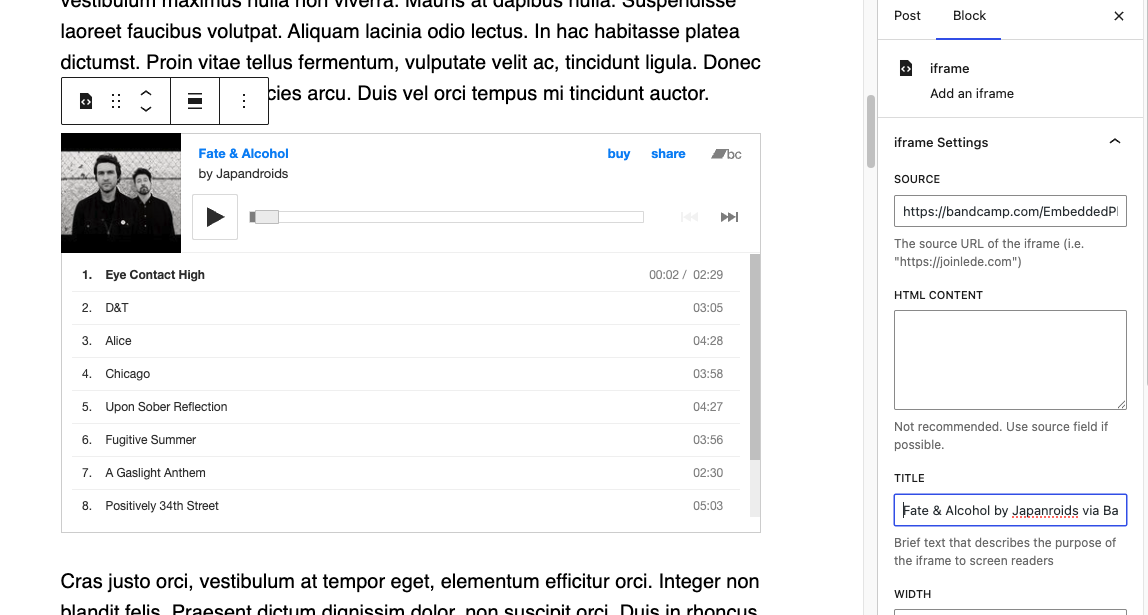
- BandCamp: Use Lede’s Iframe block. Enter the value of the src attribute into the source field.
- Apple Music: Use Lede’s Iframe block. Enter the value of the src attribute into the source field.
- Facebook: Facebook posts must be embedded using the Facebook block, NOT the Embed block.
- Instagram: Instagram posts must be embedded using the Instagram block, NOT the Embed block.
- YouTube: Only public or “unlisted” videos can be embedded, not videos marked private.
- Tumblr: Only posts are supported, not standalone images.
- BandCamp: Use Lede’s Iframe block. Enter the value of the src attribute into the source field.
- Apple Music: Use Lede’s Iframe block. Enter the value of the src attribute into the source field.
Video Block
Allows you to embed .mp4 and other native video files into a post.
- USE FOR: Native video files.
- HOW TO: Add a single file from the media library or upload a file.
- Supported file types include: .mp4, .m4v, .webm, .ogv, .wmv, and .flv
- You can add a text track (subtitles, captions, etc.) in the .vtt format to your video.
- You can also add a poster image and adjust a variety of other settings.
- We do not recommend setting media files to autoplay.
- Supported file types include: .mp4, .m4v, .webm, .ogv, .wmv, and .flv
- You can add a text track (subtitles, captions, etc.) in the .vtt format to your video.
- You can also add a poster image and adjust a variety of other settings.
- We do not recommend setting media files to autoplay.
- ACCESSIBILITY: Video content can be inaccessible to a variety of users, including users who are blind, deaf, deaf-blind, have vision issues, or have trouble hearing. To make your video content accessible, add visual captions or a transcript, and make sure there is an audio or text description of the video’s content.
Additional Embed Blocks
Custom Embed Block
This block type exists specifically for interactives with script tags, such as from Tableau, that cannot be uploaded using other Embeds.
Iframe Block
Allows you to insert general third-party content into a post.
- USE FOR: Content from third-parties not included in WordPress’s list of approved services. Also, if you tried to use an Embed block, but the functionality of the iframe is limited (not interactive, not displaying popups, etc.), try this block. Examples of third-parties where the iframe block is appropriate include DataWrapper, Apple Music, and BandCamp.
- HOW TO: In the Block Options in the right sidebar, add the iframe URL to the source input field. If you do not have a URL for the iframe source, you may be able to load the iframe using the HTML content field. Please keep in mind that WordPress will strip out an script tags from the content. If you have content with a script tag in it, review the Custom Embed blockinstead.
- Adjust the dimensions of your iframe as needed to ensure it displays as expected.
- Add a title to your iframe so that machines that read your page, such as search engine spiders and screen readers, know what is on the page.
- After the source is added, a preview of the iframe should display in the editor
- Adjust the dimensions of your iframe as needed to ensure it displays as expected.
- Add a title to your iframe so that machines that read your page, such as search engine spiders and screen readers, know what is on the page.
- After the source is added, a preview of the iframe should display in the editor
- NOTE: Use iframes in moderation. An iframe loads an entire web document inside of your web page which can negatively impact performance. A page with many iframes may load slowly and have a negative impact of your end user’s experience.
Custom HTML Block
Allows you to insert code into a post that needs to be fine-tuned via custom markup.
- We generally do not recommend using this block unless you have discussed your specific use case with the Lede team (file a support ticket with your request so we can help). The vast majority of content you wish to add to your site can be added via a different Embed block type.
Safe Script Block
Allows you to add scripts and their associated content from Lede-approved, valid third-party services.
- USE FOR: Content from a third-party service that doesn’t offer a URL for embeds or if the embed markup includes a script tag and additional markup to work.
- HOW TO: Contact Lede about your use case so that we can verify whether your service provider is included in our list of valid hosts and review the associated embed code. We may be able to identify another block that can be used instead. Once we have reviewed the code and added your service provider to the list of valid third parties, we can help you add the code correctly so the block displays securely and as expected.
Embedding PDFs
You can also embed PDFs on Lede.
If you are unable to successfully embed something on your site after trying the above options, please contact the Lede team by filing a support ticket for assistance.