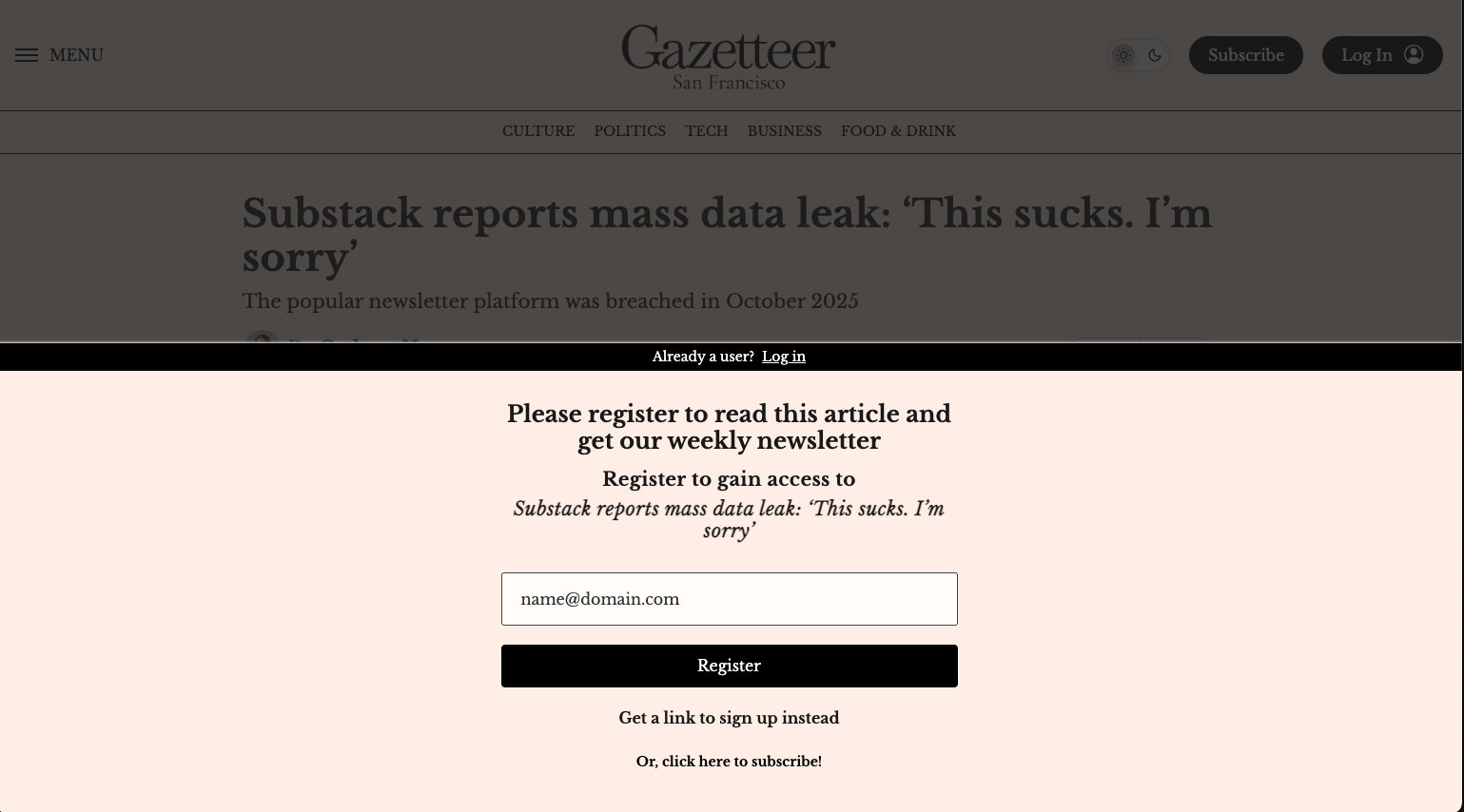
The available Registration Wall & Paywall settings have been expanded to allow additional configurability for when and how users are prompted to provide their email addresses and purchase a subscription. It is also possible to configure Category-specific Registration Wall & Paywall settings. It is currently not possible to configure the paywall on a per-article basis.
To review and adjust these settings, open the Publisher App and go to Settings > Registration Wall or Settings > Paywall.
Registration Wall Settings
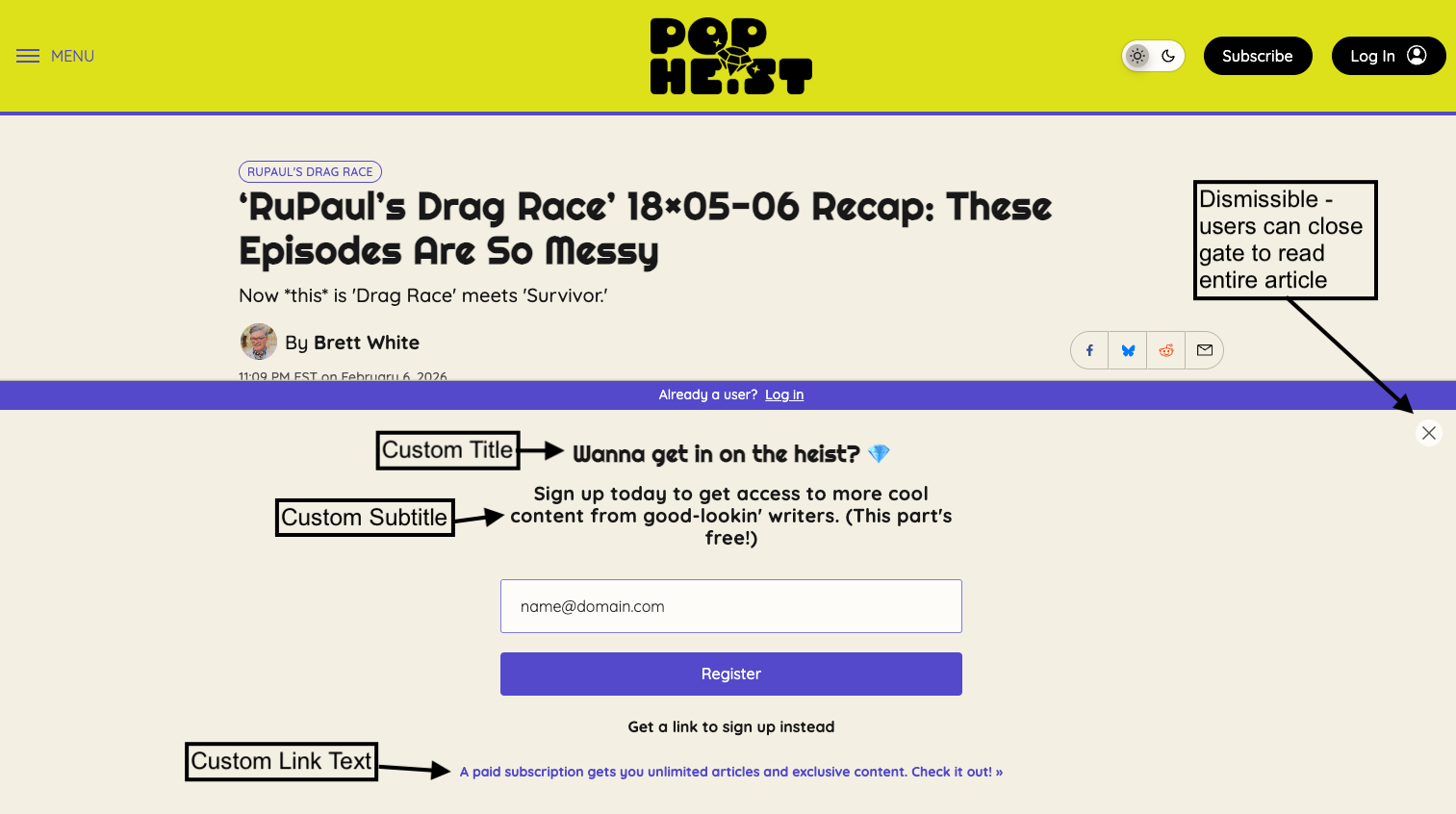
The registration wall settings control when and how a user is prompted to provide their email address.
- Enable Registration Wall: Turn on the registration wall for anonymous users. A user will be prompted to provide their email address after reaching their free article allotment (set below).
- Enable Dismissible Registration Wall: Make your registration wall dismissible. A user will be prompted to provide their email address on every article they read, but they will be able to close out the prompt until they reach their free article allotment (set below).
- Note: You must have “Enable Registration Wall” also turned on for this to properly function.
- Note: You must have “Enable Registration Wall” also turned on for this to properly function.
- Free Article Allotment: The number of articles an anonymous user can read before they are required to provide their email address in order to continue reading.
- Blocks to Preview: Once a user reaches the hard registration wall (i.e. they can no longer dismiss it), this is the number of blocks in an article an anonymous user can view before they are required to provide their email address to continue reading. Blocks are the components added to articles/posts that are typically comprised of paragraphs, images, and other media. Adjust this setting to reduce or increase how much content is shown to an anonymous user.
- Note: The default on the platform is two blocks.
- Note: If Blocks to Preview = 0, an overlay will appear when a user reaches the hard registration wall and the subtitle text will change to: “Register to gain access to [Article Title]“.
- Note: A subset of blocks are excluded from the Blocks To Preview count. Those blocks are Ad Unit, Footnotes, Newsletter, Separator, and Spacer. For example, if Blocks to Preview is set to two and the first three blocks in an article are Paragraph, Newsletter, and Image, the preview will display all three blocks.
- Note: The default on the platform is two blocks.
- Note: If Blocks to Preview = 0, an overlay will appear when a user reaches the hard registration wall and the subtitle text will change to: “Register to gain access to [Article Title]“.
- Note: A subset of blocks are excluded from the Blocks To Preview count. Those blocks are Ad Unit, Footnotes, Newsletter, Separator, and Spacer. For example, if Blocks to Preview is set to two and the first three blocks in an article are Paragraph, Newsletter, and Image, the preview will display all three blocks.
- Title Text: Adjust the first line of text that displays on the registration wall which encourages users to provide their email. If nothing is added here, the default text is, “Thanks for reading!”.
- Subtitle Text: Adjust the second line of text that displays on the registration wall which encourages users to provide their email. If nothing is added here, the default text is, “Register to continue”.
- CTA Link Text: Adjust the text that displays on the registration wall which encourages users to subscribe. If nothing is added here, the default text is, “See all subscription options”.
- CTA Link Destination: We strongly recommend not adjusting this link unless you have discussed your specific use case with the Lede team.
Paywall Settings
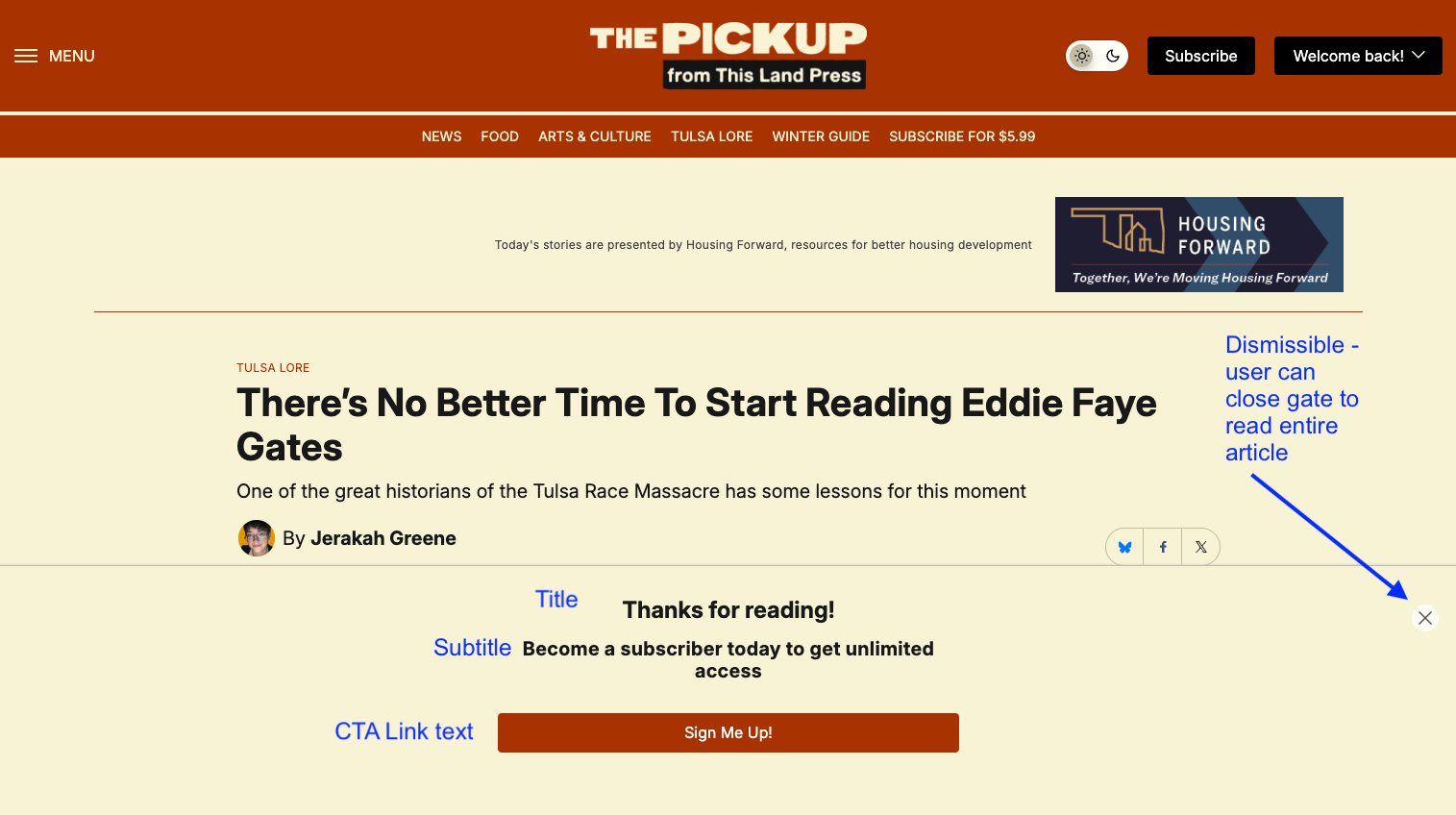
The paywall settings control when and how a user is prompted to purchase a subscription.
- Enable Paywall: Turn on the paywall for registered users. A user will be prompted to purchase a subscription after reaching their logged-in article allotment (set below).
- Enable Dismissible Paywall: Make your paywall dismissible. A user will be prompted to purchase a subscription on every article they read, but they will be able to close out the prompt until they reach their logged-in article allotment (set below).
- Note: You must have “Enable Paywall” also turned on for this to properly function.
- Note: You must have “Enable Paywall” also turned on for this to properly function.
- Logged-In Article Allotment: The number of additional articles a registered user can read before they are required to purchase a subscription in order to continue reading.
- Blocks to Preview: Once a user reaches the hard paywall (i.e. they can no longer dismiss it), this is the number of blocks in an article a registered user can view before they are required to purchase a subscription to continue reading. Blocks are the components added to articles/posts that are typically comprised of paragraphs, images, and other media. Adjust this setting to reduce or increase how much content is shown to a registered user.
- Note: The default on the platform is two blocks.
- Note: If Blocks to Preview = 0, an overlay will appear when a user reaches the hard paywall and the subtitle text will change to: “Subscribe to gain access to [Article Title]“. See screenshot below.
- Note: A subset of blocks are excluded from the Blocks To Preview count. Those blocks are Ad Unit, Footnotes, Newsletter, Separator, and Spacer. For example, if Blocks to Preview is set to two and the first three blocks in an article are Paragraph, Newsletter, and Image, the preview will display all three blocks.
- Note: The default on the platform is two blocks.
- Note: If Blocks to Preview = 0, an overlay will appear when a user reaches the hard paywall and the subtitle text will change to: “Subscribe to gain access to [Article Title]“. See screenshot below.
- Note: A subset of blocks are excluded from the Blocks To Preview count. Those blocks are Ad Unit, Footnotes, Newsletter, Separator, and Spacer. For example, if Blocks to Preview is set to two and the first three blocks in an article are Paragraph, Newsletter, and Image, the preview will display all three blocks.
- Title Text: Adjust the first line of text that displays on the paywall which encourages users to subscribe. If nothing is added here, the default text is, “Thanks for reading!”.
- Subtitle Text: Adjust the second line of text that displays on the paywall which encourages users to subscribe. If nothing is added here, the default text is, “Become a subscriber today to get unlimited access”.
- CTA Link Text: Adjust the text that displays on the paywall which encourages users to subscribe. If nothing is added here, the default text is, “Sign Me Up!”.
- CTA Link Destination: We strongly recommend not adjusting this link unless you have discussed your specific use case with the Lede team.
The article allotment counter keeps track of which articles a user has read. Navigating to the same article twice will only count once against the allotment.An article with a hard registration wall, where blocks to preview is set to 0 (zero).