Article River Settings allow publishers to customize the content and appearance of the recirculation module at the bottom of individual articles known as the Article River. The Article River contains 6 articles.
The Article River settings are global and apply to all articles on the site. There are not currently any settings that allow the global Article River settings to be overridden on a per-article or per-category basis.
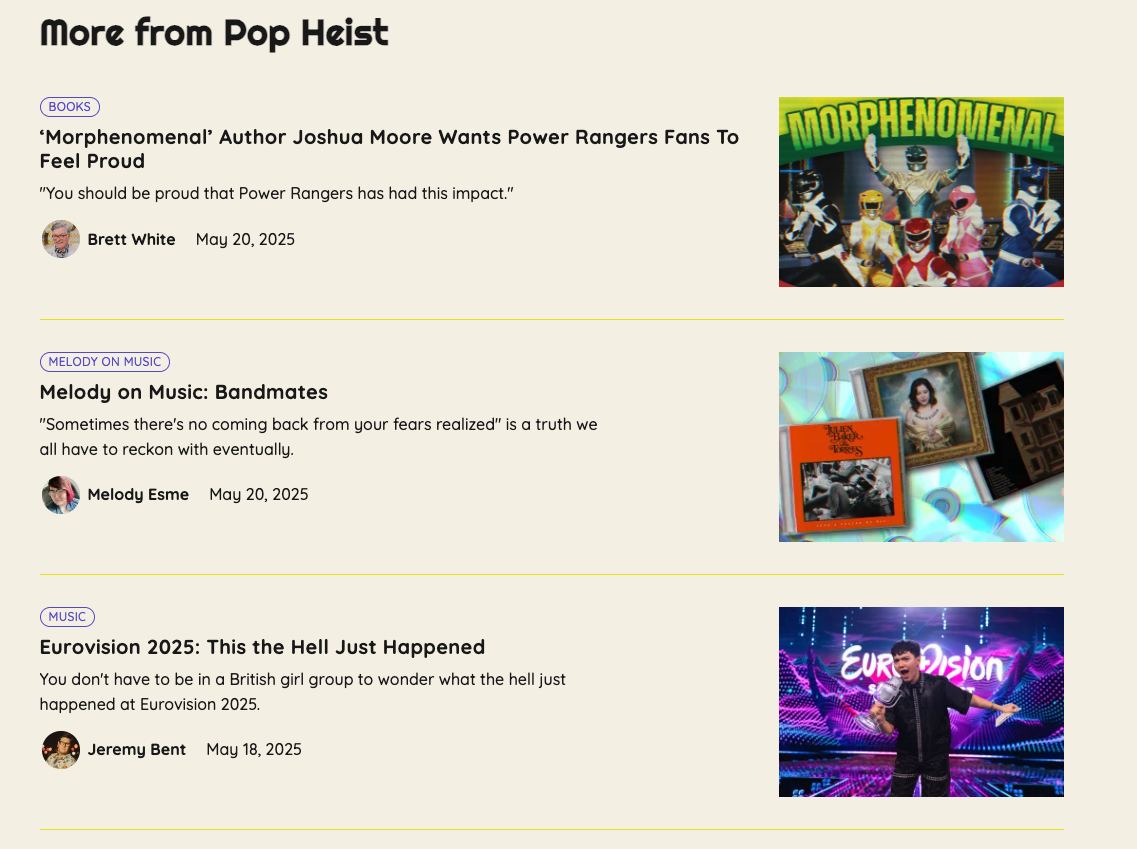 The Article River on PopHeist, which uses a custom Article River Divider Color
The Settings
The settings for the Article River can be found in the Publisher App under Settings > Appearance, in the “Posts & Pages” group.
Article River Divider Color
Set the color of the border between article river cards. The default color is light grey. You can also use your primary, secondary, or accent color. In dark mode, the border is light grey.
Article River Content
This setting determines which posts display. There are two options: default and category. Both options remove the current article from the list.
The default setting displays the most recent articles chronologically. The heading for the Article River with the default setting is “More from [Publication Name].” The CTA is “See all posts” and it links to the /all page.
The category setting displays the most recent articles from the post’s primary category. If there is no primary category set for an article, the most recent posts will display. The heading for the Article River with the category setting is “More from [Category Name].” The CTA is “Explore [Category Name]” and it links to the category’s archive page at /category/category-name. Example with the category Movies. The heading will be “More from Movies” and the CTA will be “Explore Movies,” which will link to the /category/movies.
Important note
The category content will only display if the primary category has more than 3 or more posts and if the primary category is not “Uncategorized.” In those cases, the chronological posts will display for that post as a backup.
Article River Layout
This setting determines the Article River layout. There are two options: default and three across.
The default setting displays a vertical river of posts. The CTA is at the bottom of the river.
The three across setting displays a three across grid of posts on desktop screens. On medium sized screens, the grid is two across, and the posts stack on mobile. The CTA is at the top of the river.
Important note
The Sponsorship River Card will not display in three across layout. This is similar to other instances of the three across layout.
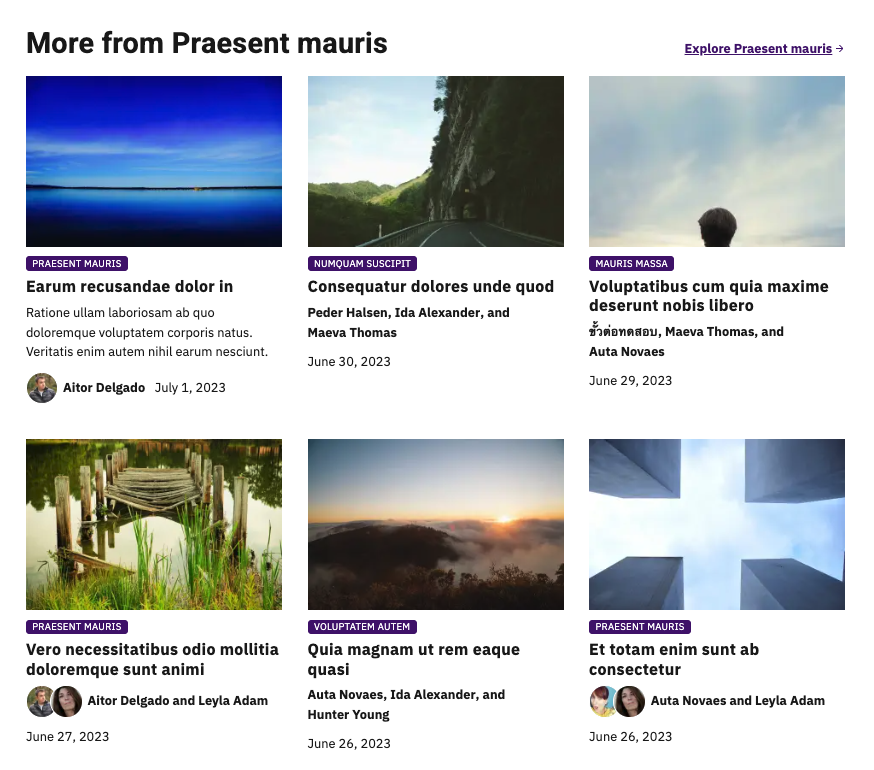 The Article River on Lede FYI, which uses the “three across” Article River Layout and the “category” Article River Content
Other settings that apply to the Article River
Lede Lite
The “Archive & Single Article Post Rivers” Lede Lite setting also applies to the Article River. When enabled, images do not display in the Article River regardless of the content or layout selections above. This toggle is not currently exposed in the Publisher App — please contact Lede support if you would like it enabled or disabled for your site.