The Lede platform offers the ability to set ad campaigns on your website. This functionality can be used for sponsorships, subscription sale advertising, and other similar purposes. To access Ad Campaigns, navigate to your WordPress Admin and click the Ad Campaigns menu item.
Campaign Display Fields
See annotated screenshots at the bottom of this page for where fields display in all available targets. Please note that the Leaderboard has a separate module.
- Title: Displays similarly to a Post title for the River, Article Card, and Homepage Card targets
- Dek: Displays similarly to a Post dek for the River, Article Card, and Homepage Card targets
- Call to Action (CTA): appears in the Article Card and Homepage Card targets
- Link: Where all elements of the ad campaign link
- Tracking Code: Optional field that can be used for analytics purposes
- Sponsor Logo: Displays to the right of the Messaging in the Article Banner, Article Card and Homepage Card targets. Does not display in the Leaderboard.
- Note: Rectangular images work best in this field, along with square images sized to 150 x 150px.
- Note: Rectangular images work best in this field, along with square images sized to 150 x 150px.
- Campaign Image: Displays similarly to a box ad for the River, Article Card, and Homepage Card targets Does not display in the Leaderboard.
- Note: The following dimensions are recommended
- width: 615px
- ratio: 3:2
- Note: The following dimensions are recommended
- Note: The following dimensions are recommended
- width: 615px
- ratio: 3:2
- width: 615px
- ratio: 3:2
- Messaging: Displays to the left of the Sponsor Logo for the Article Banner, Article Card, and Homepage Card targets; displays above the Title for the River targets.
- Ex: “Today’s stories are presented by:”, “Sponsored by:”, etc.
- Ex: “Today’s stories are presented by:”, “Sponsored by:”, etc.
- Category: (optional) If you select one or more categories in this field, your Ad Campaign will display on the category archive pages and single post pages within the selected category, overriding any site-wide campaigns that might be live.
- Notes:
- This only applies to the Primary category of posts.
- You can set up multiple Ad Campaigns that target different categories.
- If nothing is selected here, your Ad Campaign will display site-wide.
- Notes:
- Notes:
- This only applies to the Primary category of posts.
- You can set up multiple Ad Campaigns that target different categories.
- If nothing is selected here, your Ad Campaign will display site-wide.
- This only applies to the Primary category of posts.
- You can set up multiple Ad Campaigns that target different categories.
- If nothing is selected here, your Ad Campaign will display site-wide.
If you have multiple site-wide Ad Campaigns or multiple Ad Campaigns that have selected the same category that are all published, the most recently published Ad Campaign is the one that will display.Leaderboard Display Fields
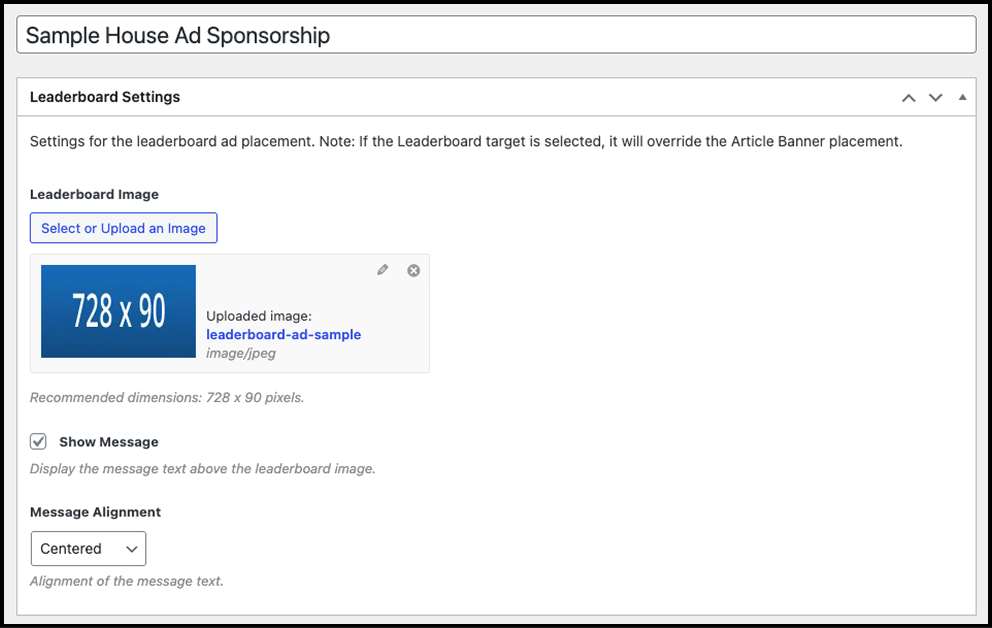
- Leaderboard image
- Recommended dimension is 728 x 90 pixels.
- The image will size down responsively on mobile.
- Recommended dimension is 728 x 90 pixels.
- The image will size down responsively on mobile.
- Show message
- Whether or not to display the message field. Message is set in the general ad campaign settings.
- Whether or not to display the message field. Message is set in the general ad campaign settings.
- Message alignment
- Whether to display the message on the left or centered.
- Whether to display the message on the left or centered.
Targets
Select which targets you want your Ad Campaign to appear in:
- Leaderboard: Banner with large image and optional text under the header in the following locations: Homepage, Articles, Category, Tag, Author, and Search pages.
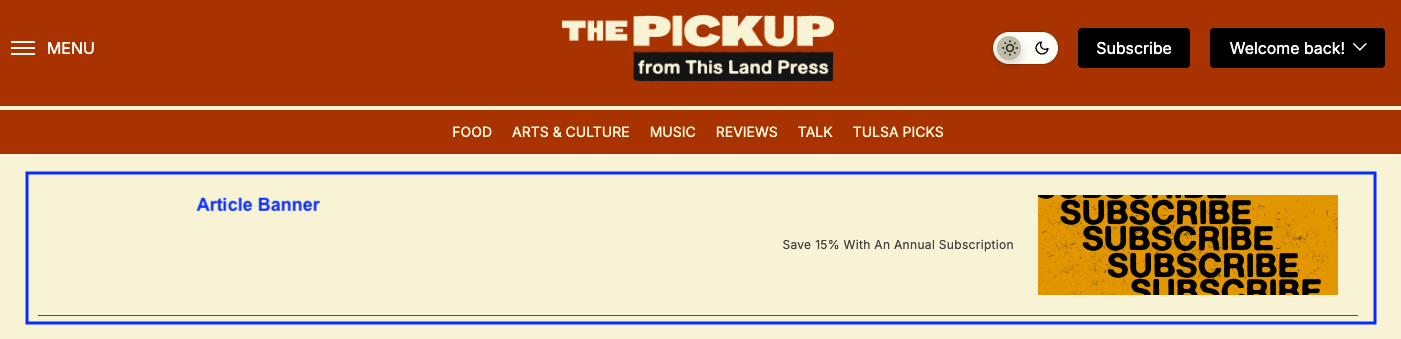
- Article Banner: Banner with small image under the header in the following locations: Homepage, Articles, Category, Tag, Author, and Search pages.
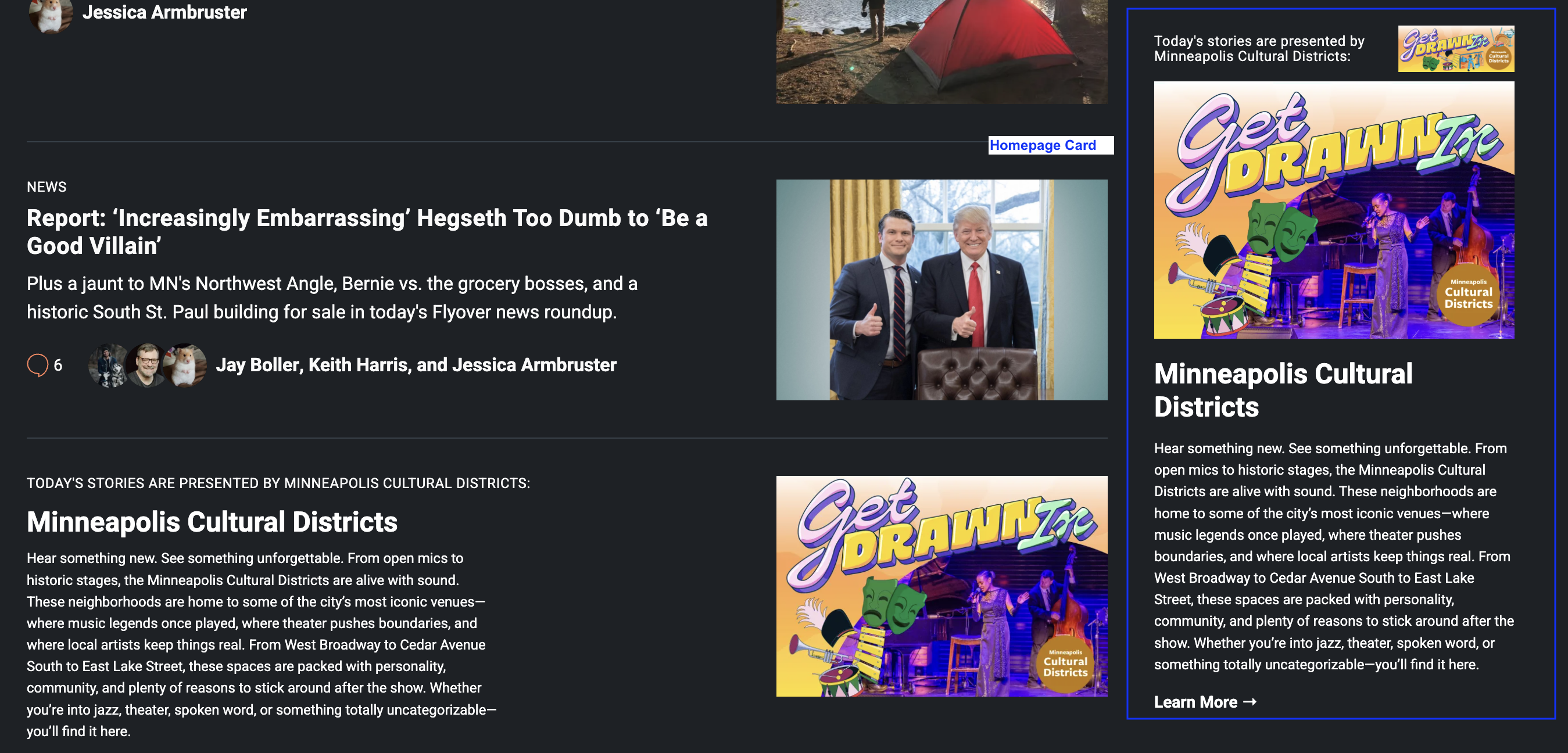
- Homepage Card: “Sponsorship” block available on Homepage. For this target to appear, you must insert this block on the Homepage via the Homepage Editor.
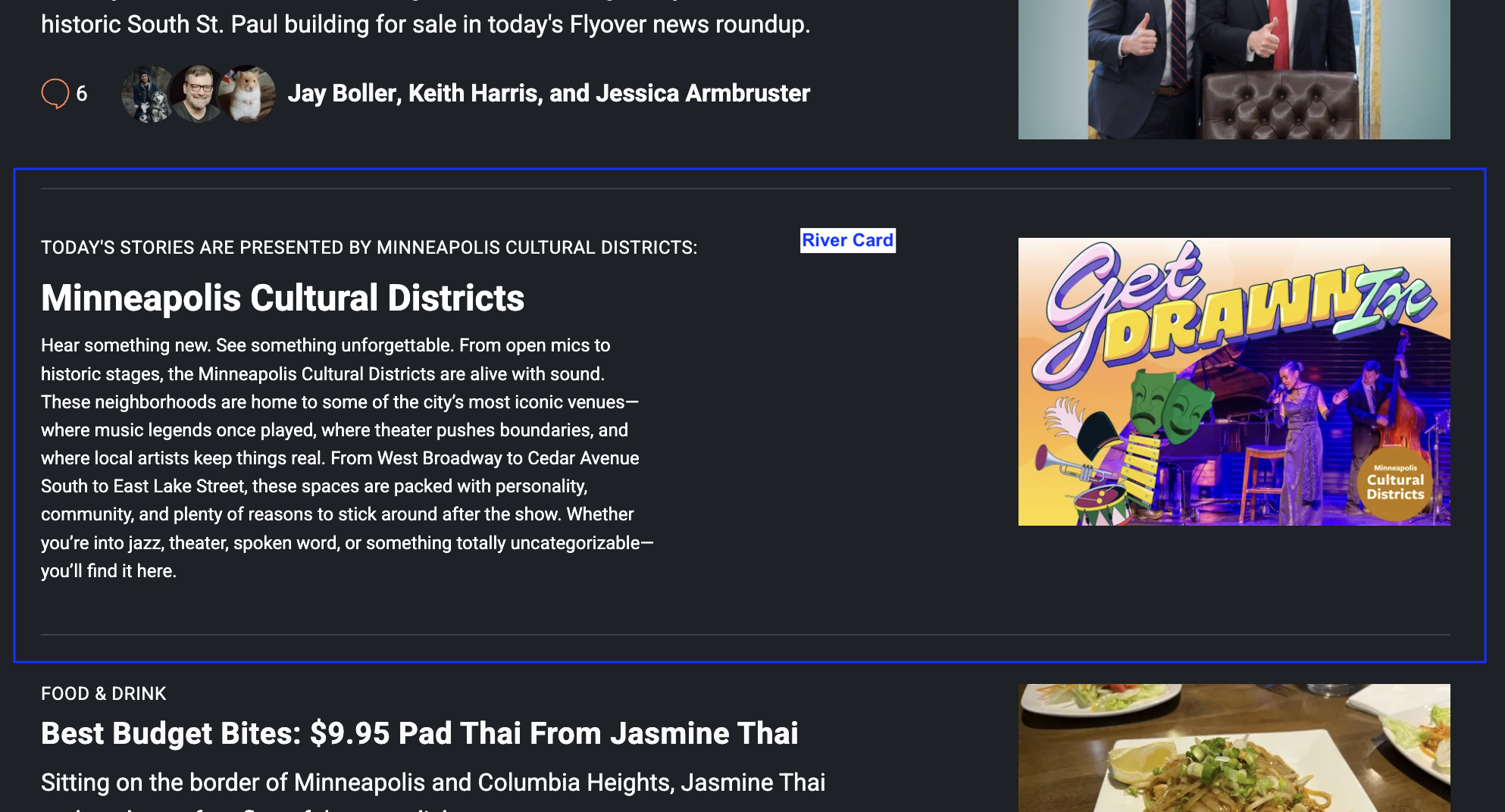
- River Card: Third slot in the rivers in the following locations: Homepage, Articles, Category, Tag, Author, and Search pages.
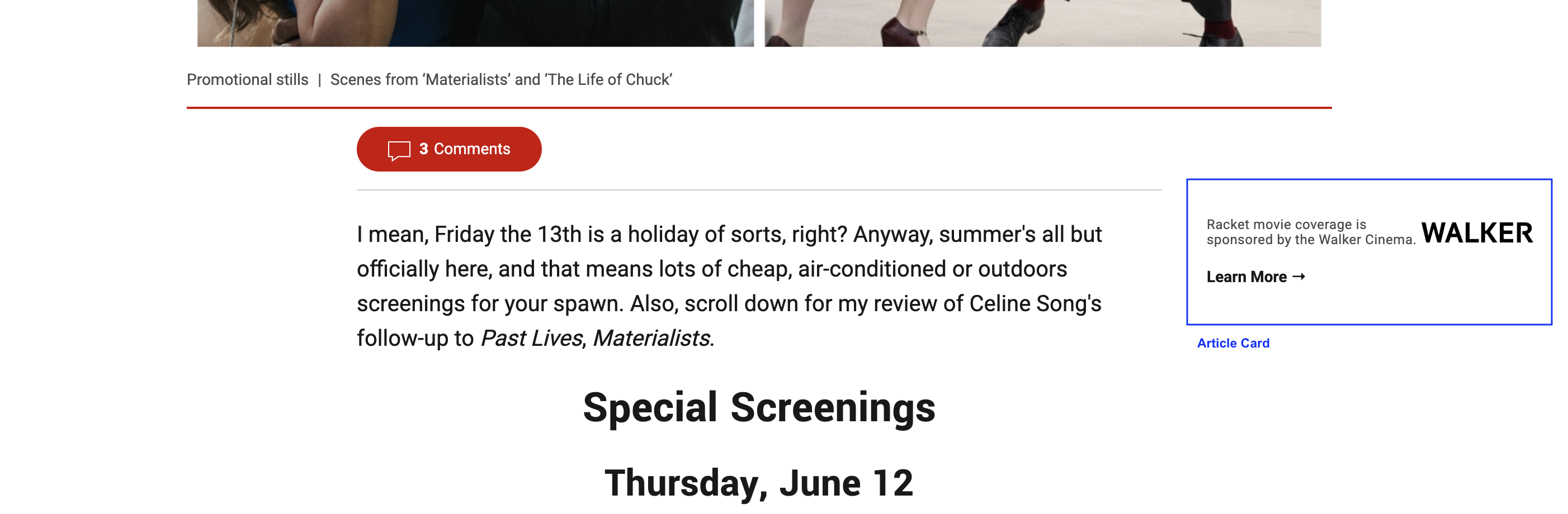
- Article Card: Appears on articles to the right of the post content on desktop, and below the post headline/byline on mobile. Same layout as the Homepage Card.
Leaderboard Display with centered message
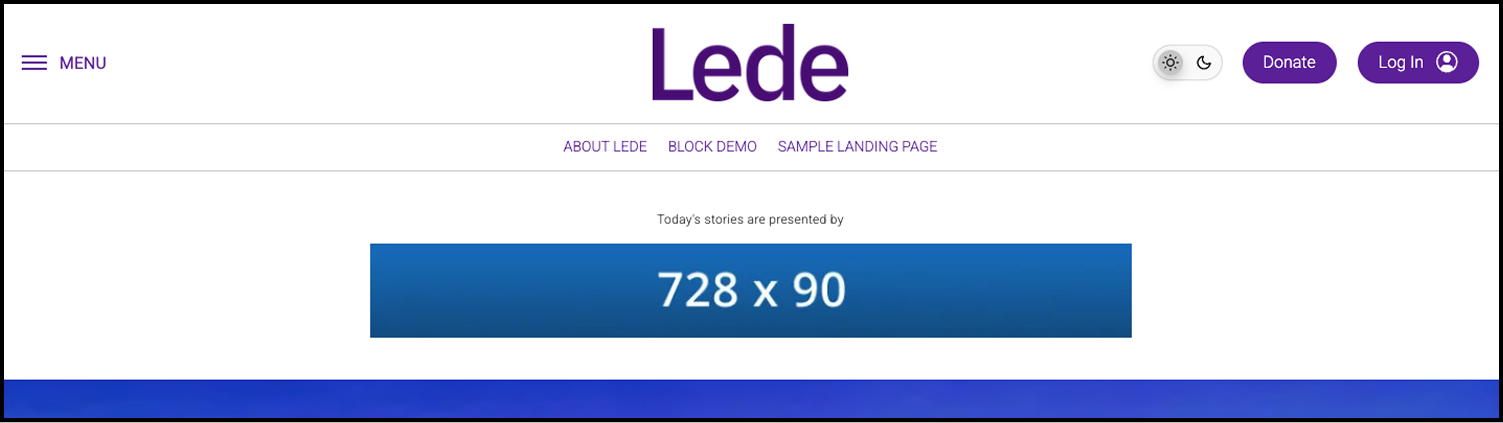
Leaderboard Display with left-aligned message
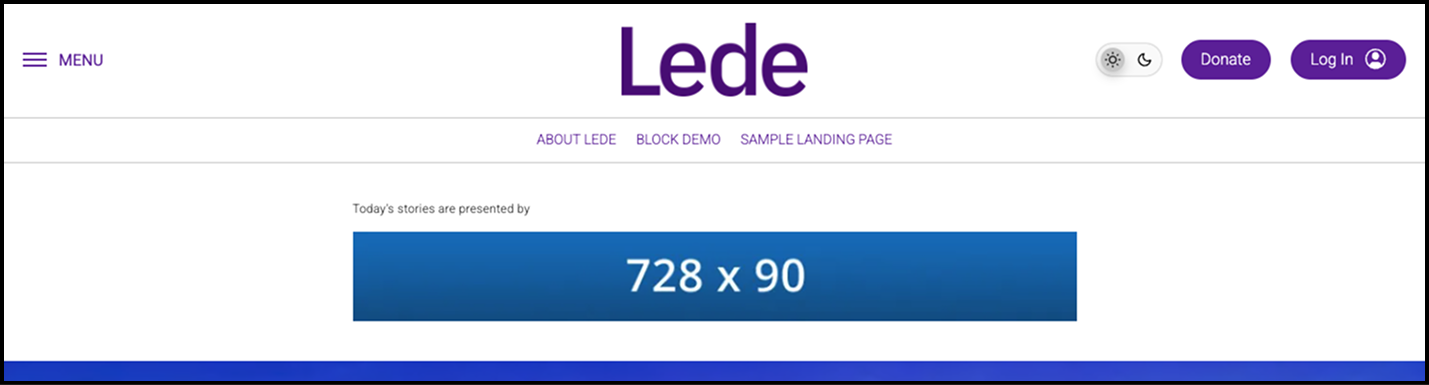
Article Banner Display
Homepage Card Display
Article Card Display
River Card Display